Pre-Requisites
Before getting started you will need to ensure that you have the following:
- A Stripe Account. If you do not have one already you can either go to Settings > Online Payments in Xero and set one up via there, or you can set it up as part of enabling tap to pay in Xero
- A Compatible iPhone or Android Phone. If you’re using an iPhone you need to have an iPhone XS or higher running iOS 16.4 or higher./
If you’re using an Android it needs to support NFC, and be running Android 11 or higher
3. You will also need the Xero Accounting App installed (iPhone: App Store or Android: Google Play)
Setting Up Tap to Pay
If you've got the pre-requisites sorted the first thing to do is open the Xero Accounting app on your device. The screenshots provided in this article are from an iPhone, but the Android process is similar
If you are lucky, you will just be greeted with an "Enable Now" button for tap to pay when you open the app
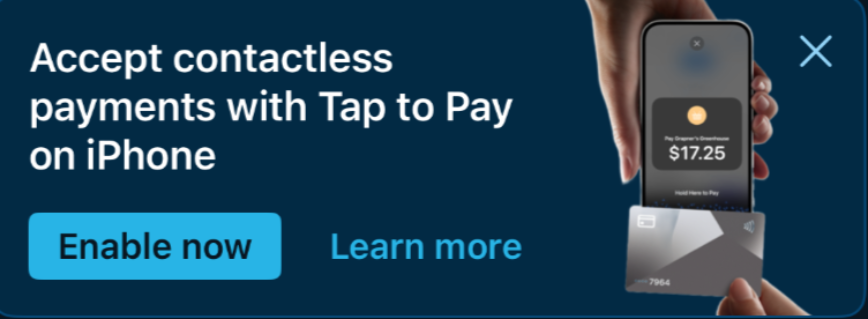
If you can't see that, from the Dashboard in the app tap the three dots in the top left of the app - then tap on "Tap To Pay on iPhone"
You will then be guided through the next steps. If you don't have a Stripe account yet, you'll be guided through setting that up first.
Step One
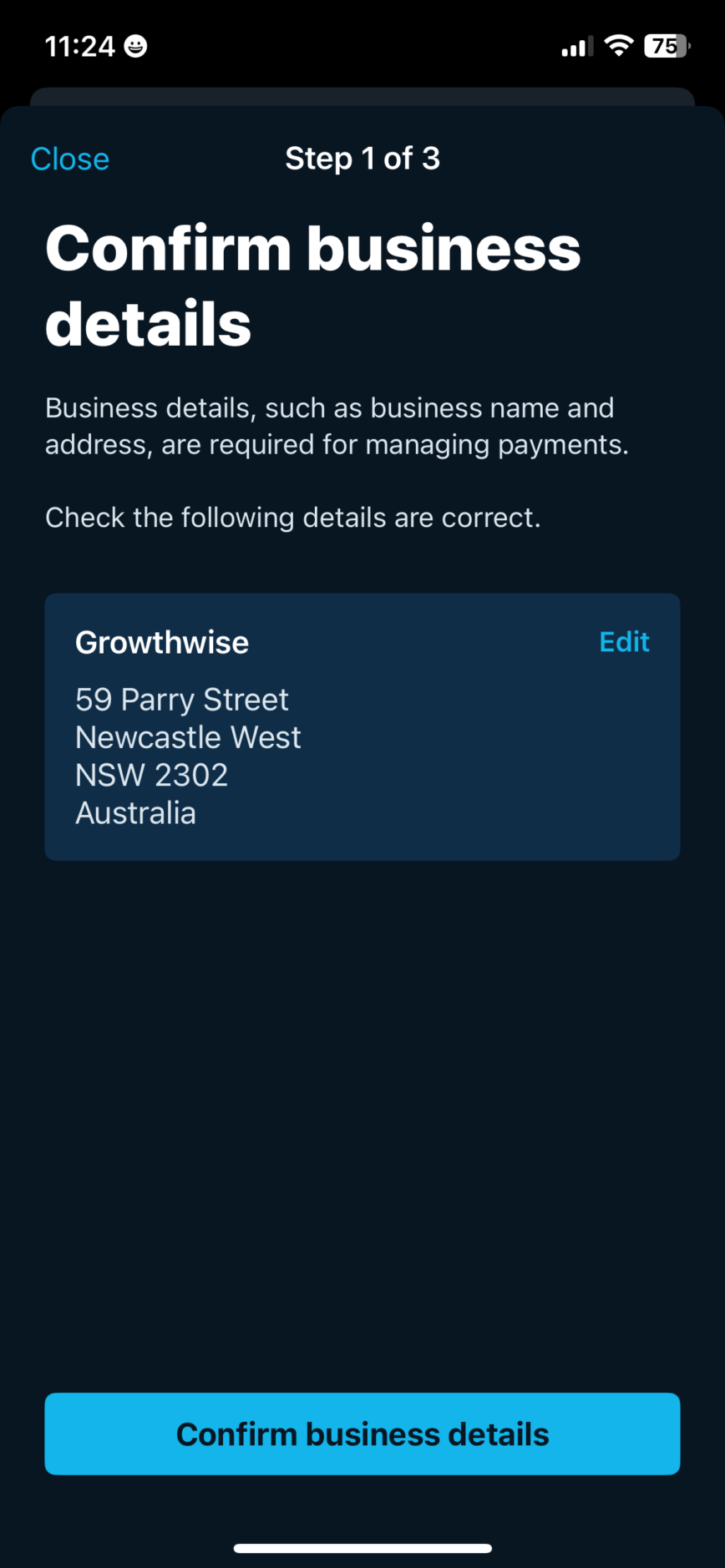
For Step one, confirm that your business name and address is correct, if it isn't edit the details then tap on "Confirm Business Details"
Step Two
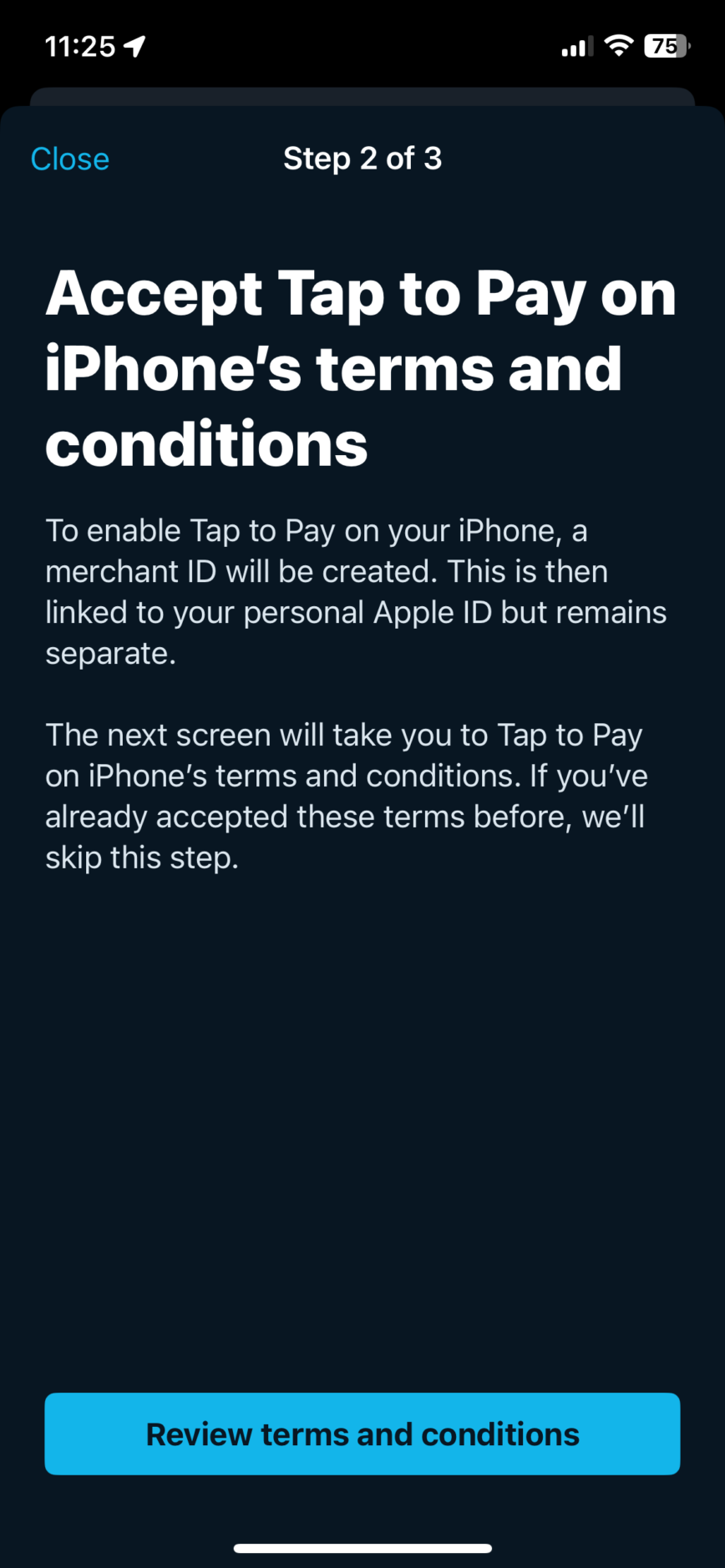
You'll need to review and confirm the conditions of the service. Note this can take a litle bit of time to initially load.
Step 3
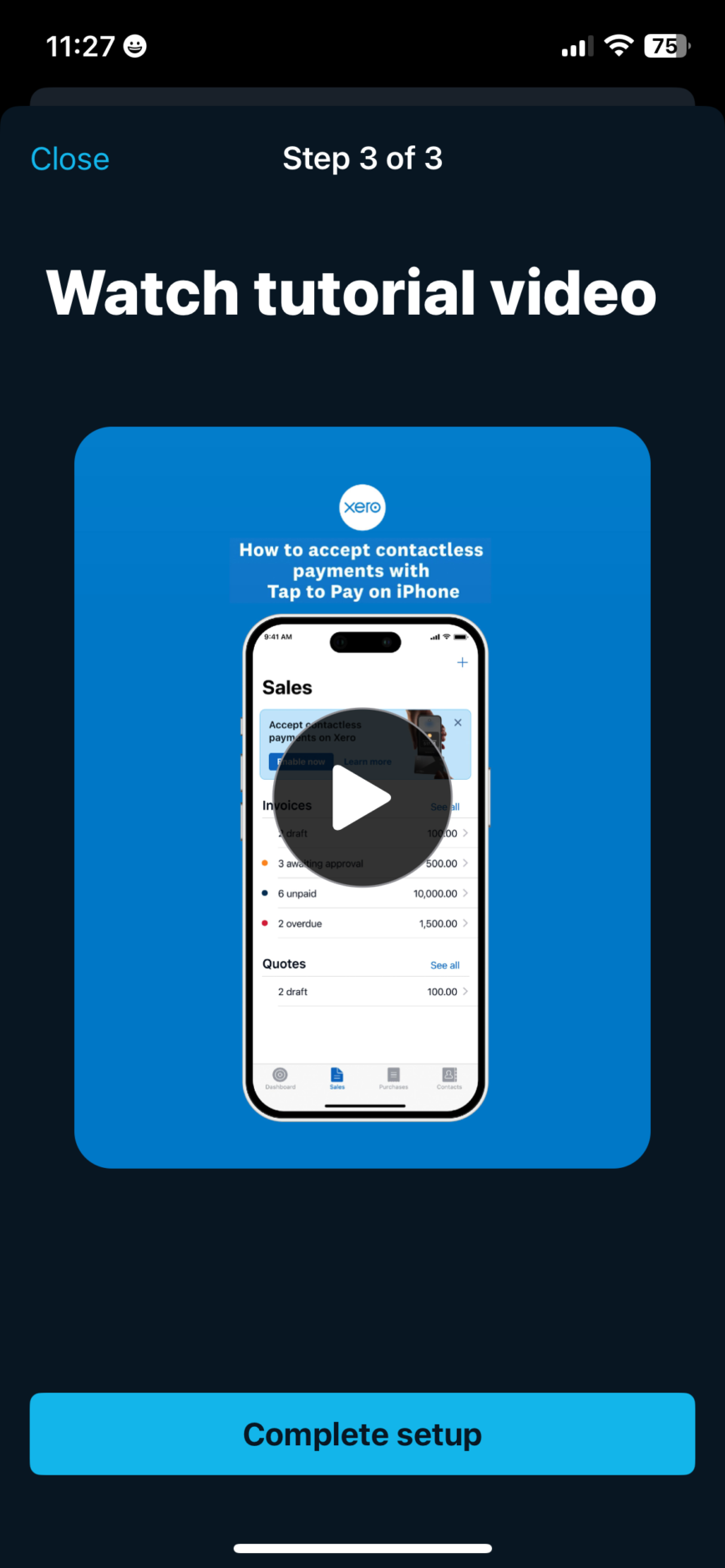
The final step to enable tap to pay is to tap complete setup, this will then guide you to the invoices section of the app but we'll explain how to get back there if you've got lost along the way.
At this point you're ready to take payments!
Taking Payments
If you've already got an invoice that you've entered that you wish to collect payment for then:
- Tap on "Sales" in the app
- Tap on "Unpaid"
- Find the invoice you wish to collect payment for and tap to open it
At the bottom of the invoice you'll see a button that says "Take payment" - tap on it
If you haven't yet issued your invoice, tap sales and enter a new invoice, and you will be guided to take payment as part of the entry process
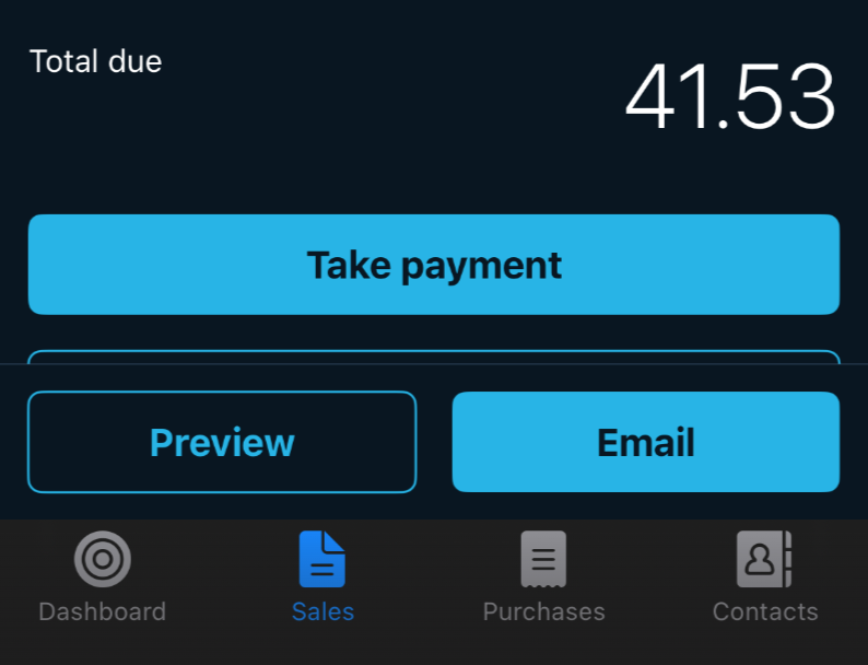
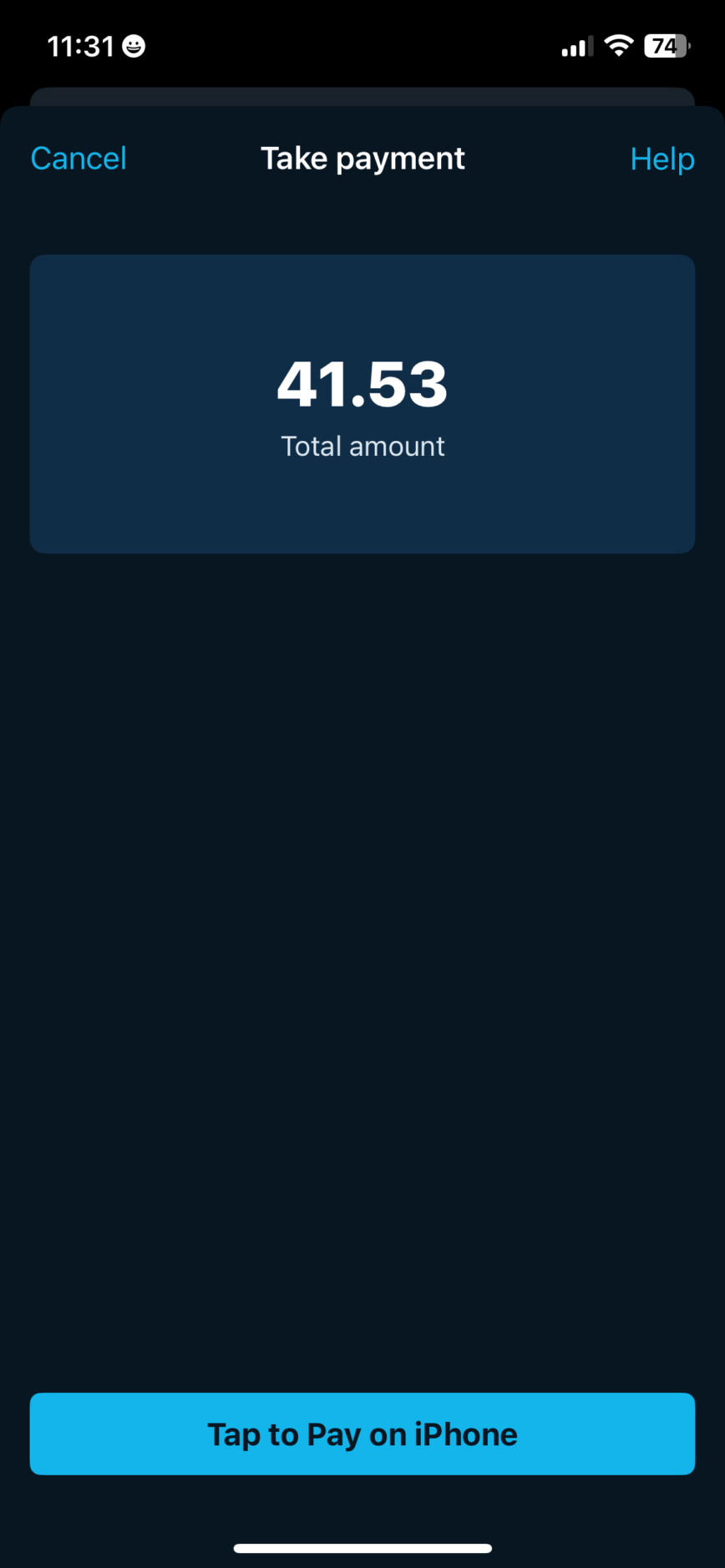
You will be shown a preview of the total amount, and can then tap on "Tap to Pay on iPhone"
You will then see a screen that shows where your customer can tap their card!
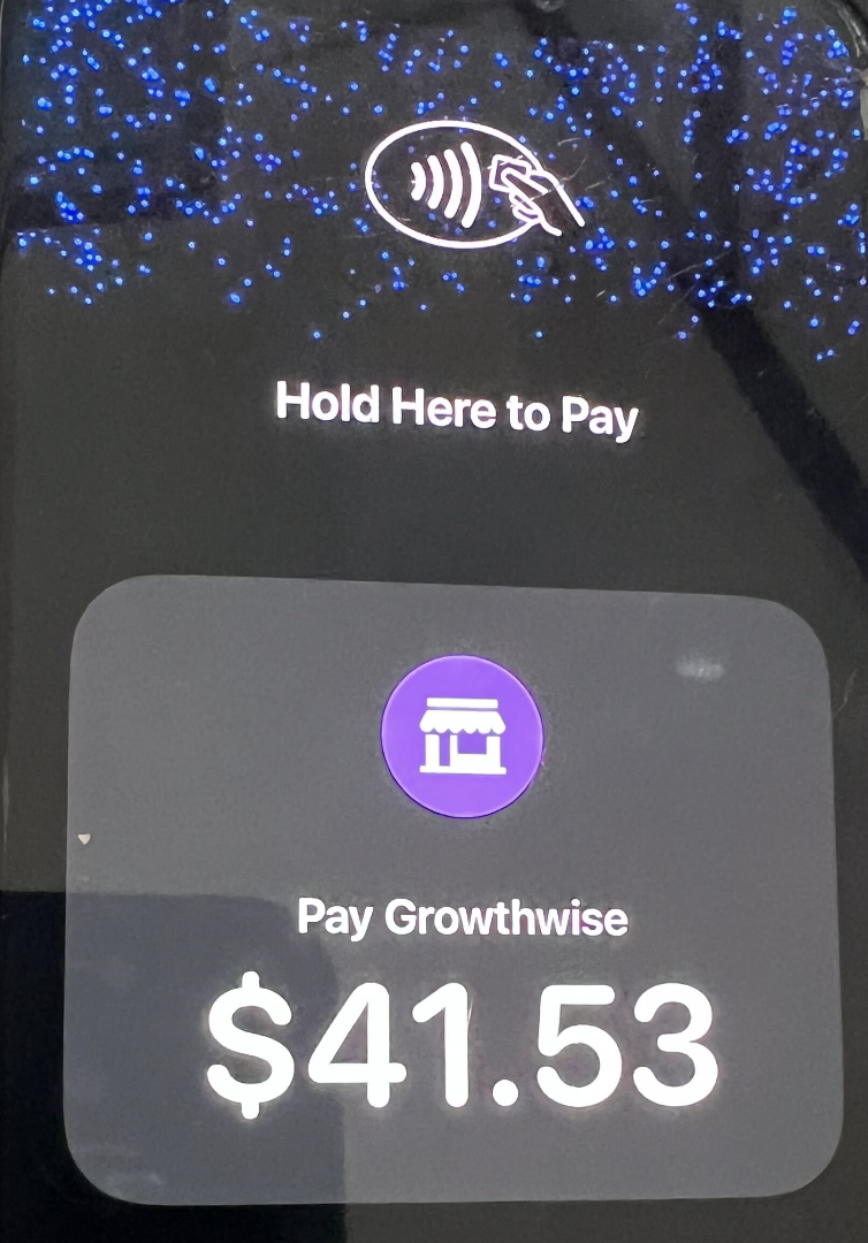
Hover your customers card where it says to tap, note on some Android phones you will actually tap the card on to the back of the device instead of the screen
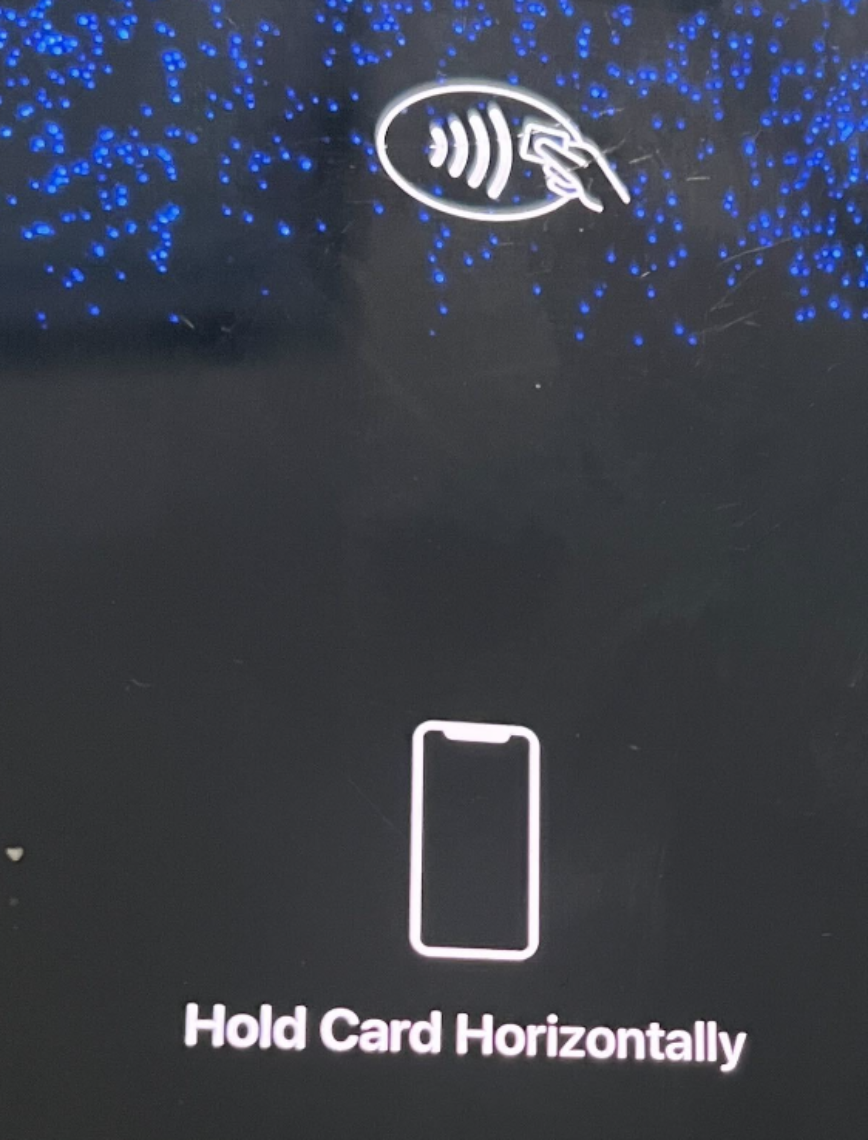
If you don't actually do this in time you'll see a guide of where to position the card
Once you've held the card to the device you'll see an acknowledgement of payment and you can send your customer a receipt if required
FAQ - Tap to Pay
Can I Take A Bulk Payment
Not currently, Tap to pay is designed to be for one off payments
Can My Team Take Payments?
Yes! With the right permissions as long as your team member has an appropriate device they can set up tap to pay on their device and take payment on invoices.
It isnt working and my device should be supported what do I do?
Ensure that you have downloaded the latest iOS update if you are using an iPhone, or the latest Android update if you are using an android phone
Some Android devices will meet the software requirement, but if they do not support NFC they will not work with tap to pay. Ask your accountant if you can buy a new phone :-)
Are there fees?
Yes - but there are no sign-up, setup or monthly costs included. However, there is a Stripe fee charged by Xero once your customer makes payment. The fees are 1.7% + A$0.25 per transaction for domestic cards (inc. GST), and 3.5% + A$0.25 per transaction for international cards.